

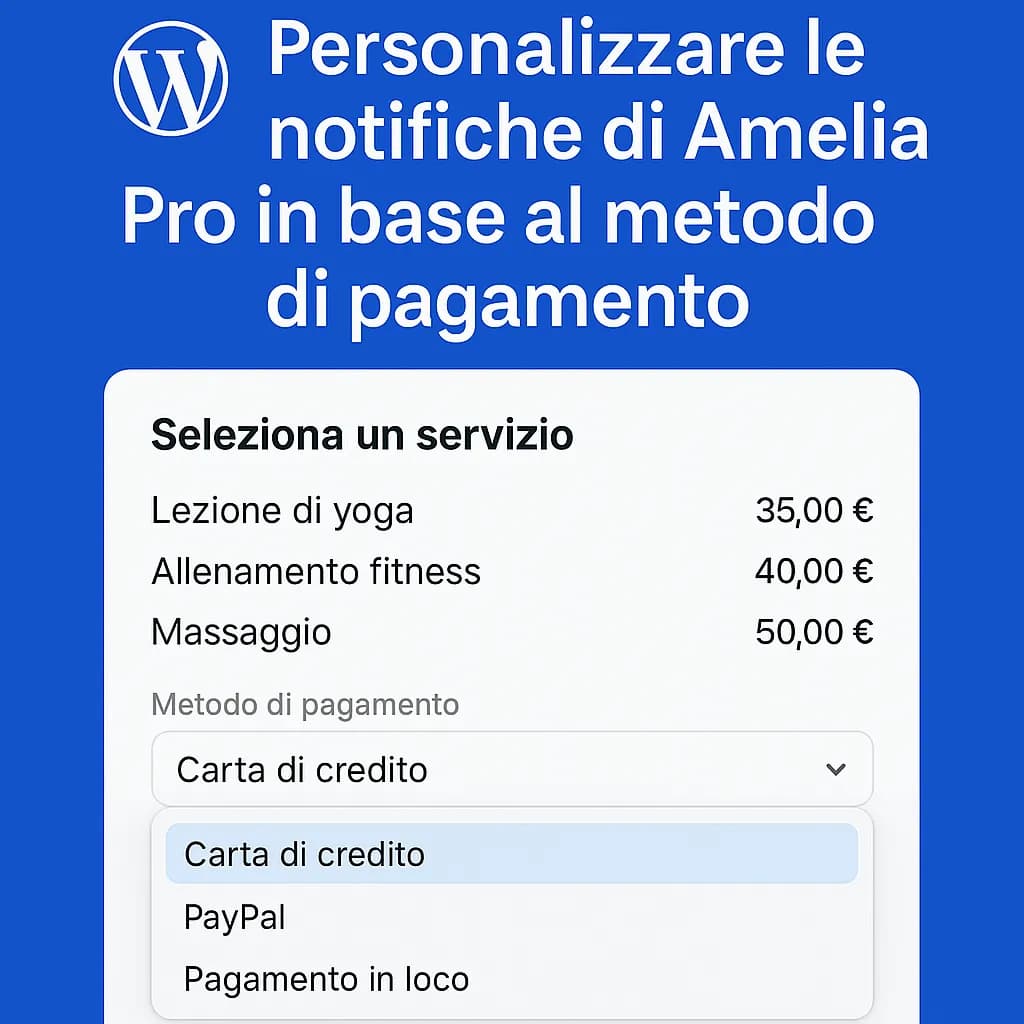
If you use Amelia Pro to manage online bookings, you have probably already set up the automatic notifications sent to customers. But did you know you can add custom messages to those emails depending on the payment method chosen?
In this article I explain how to do it with a simple but powerful PHP snippet, using a filter provided by Amelia.
Goal
Dynamically change a message inside the booking approved notification, based on the payment method selected by the customer:
- ✅ If the customer pays with Stripe, we show a confirmation message.
- 💸 If the customer chooses Bank transfer, we show the bank details for making the payment.
The PHP code to add
Add this code to your child theme’s functions.php file or to a custom plugin:
function conditional_message($placeholders)
{
    // Read the values from the placeholders
    $payment_type = $placeholders['payment_type'];
    $customer_full_name = $placeholders['customer_full_name'];
    $appointment_date_time = $placeholders['appointment_date_time'];
    $message = '';
    if ($payment_type === 'Stripe') {
        $message = "Thank you for paying online. Your appointment is confirmed!";
    } elseif ($payment_type === 'Bank transfer') {
        $message = "<p>To confirm your appointment, please make a bank transfer to the following account:</p>";
        $message .= "<p>Account holder: John Smith</p>";
        $message .= "<p>Bank: EXAMPLE BANK PLC</p>";
        $message .= "<p>IBAN: IT00A0000000000000000000000</p>";
        $message .= "<p>BIC/SWIFT: ABCDITMMXXX</p>";
        $message .= "<p>Reference: Nutrition consultation " . $customer_full_name . "</p>";
    }
    return $message;
}
add_filter('amelia_dynamic_placeholder_location_payment', 'conditional_message', 10, 1);
How to use it in the notification
Go to Amelia > Notifications > Appointment Approved and insert this shortcode where you want the custom message to appear:
%location_payment%
Remember to also include the other placeholders the code needs in the body of the notification, such as %payment_type%, %customer_full_name% and so on.
❓ FAQ – Frequently asked questions
How do I know which placeholders I can use in Amelia notifications?
You can see the list of available placeholders directly in the notification editing panel. Make sure you add them to the body of the message if you want to access them from code.
Is the payment method returned in English or in the site language?
The value returned by the %payment_type% placeholder is the label shown to the user, so it is in the language set for the front end (e.g. “Bank transfer” and “Stripe” on an English site). Adjust the comparison in the code to match your labels.
What happens if I do not include the %payment_type% placeholder in the notification?
The filter will not receive that value and cannot return the right message. Always make sure the required placeholders are in the body of the notification.
Can I use this approach in other notifications too?
Yes, you can use the amelia_dynamic_placeholder_location_payment filter in any notification, as long as it includes the %location_payment% shortcode and the related placeholders are present.
🚀 Want to automate bookings on your site?
If you want to customise Amelia or build a fully automated, professional booking system for your WordPress site, get in touch today! I can help you set everything up properly, integrating Stripe, bank transfers, custom notifications and much more.